(Ha, after 7 years, I get to do more fooling around with car multimedia systems!)
We recently replaced our 13 year old Octavia with a Citroën C5 Aircross PHEV.
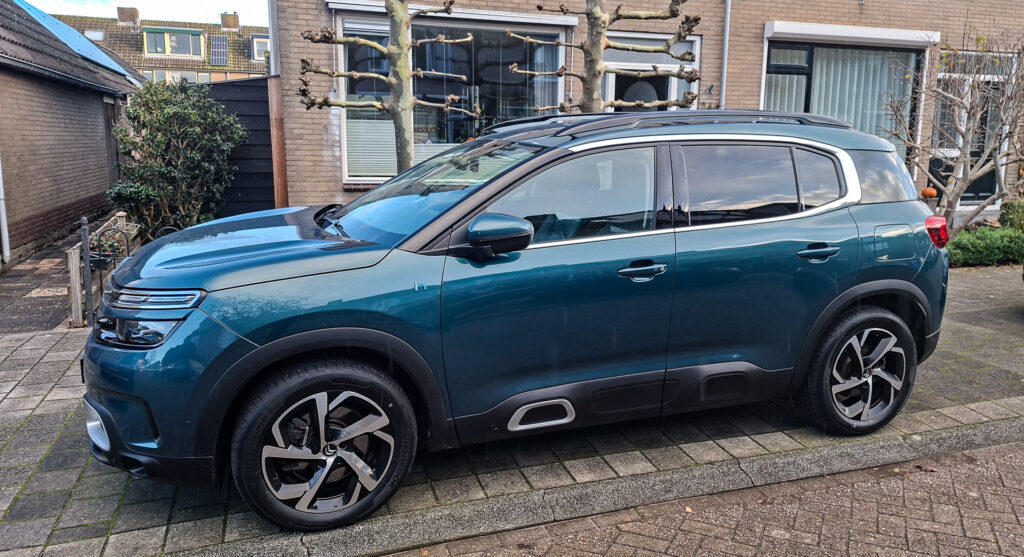
To get one thing out of the way first, I know from personal experience (as a devoted owner) that the CX and the XM were years ahead of this in terms of creature comfort or aesthetics. But those days are over… so let’s not go there, okay? As much as I would want one, I can’t sell my spouse on a CX, and I already have way too many hobbies.
This is just a nice, squishy, super-friendly, quite comfy teddy bear of a car. No DIRAVI, and you actually have to press, rather than feather, the brake pedal to get it to stop. Very user-friendly, and very easy to get into and out of for retired folks like us. Unlike the phase one CX after it’s been stationary for long enough to empty its bladder.
And it has all sorts of tech, some of which can apparently be operated from a phone app.
After hearing/reading scary stories about getting the app working on a Stellantis car, I thought, “… how hard can it be?”
Below is the process I went through. I’ll summarize the steps briefly at the end.
But first, a disclaimer. Bear with me…
Disclaimer
Dear reader,
I am very sorry to be rude to you so early in our relationship. But what with us living in a society where people can successfully sue fast-food restaurants for serving hot beverages at the proper temperature, my lawyer insists that I insult your intelligence before we proceed.
I’ve done everything within my powers to verify that the procedure described below behaves socially. I have even tested the procedure on my own 2020 Citroën C5 Aircross PHEV, equipped with a Citroën Connect NAC-Wave-4, initially with firmware version 43.x.x.x. I can tell you that following them properly will not make your car explode or format your C:-drive, but I cannot accept responsibility for it to not function in your specific environment.
If, as a result of you following the procedure, Bad Things happen, causing your car to grind to a halt, your wife to divorce you and taking the kids with her to her mother in Miami, your mistress to dump you in favour of her padel coach, your garage to be set on fire, which in turn reduces your Citroën to a heap of shrapnel and killing your neighbour’s mother-in-law, and I hear about it, I will feel very, very sorry for you.
But that’s about it.
If you’ve been sufficiently insulted by this here disclaimer, please forgive me, and let’s see if we can make our relationship work.
Let’s do this!
Initially, I installed the MyCitroën app on my Samsung A56. Following the steps the app instructed me to take, I successfully told the app I wanted to use it with our car, but that was it. The car told me I “had to make a few trips of at least 20 minutes first,” after which the banner would disappear, but that didn’t have the desired effect.
Van Vliet in Woerden told me he was pretty sure a software update for the multimedia system would solve the problem. He also told me I’d best schedule a workshop appointment, as this was all very difficult and very risky and very scary for mere mortals.
And, that workshop appointment could be scheduled a month later.
So I figured we’d first see how difficult it actually is. After all, I’ve been told that my brain is wired to solve weird stuff.
So I downloaded the software update and also downloaded the map updates. This comes in the form of (in my case) a Windows installer, which neatly guides you through the correct steps. If I rember correctly, there is a version for MacOS too, but I didn’t try that.
So I found a reliable USB drive that could be emptied, and let the program do its thing. At the end of preparing the SSD drive, the program displayed the manual for updating both the multimedia software and the maps.
The manual didn’t contain any skulls or radioactive warnings or other dramatic stuff, so I thought, I’ll just do it. First, the multimedia software, because I’d already read that you can also install the maps while driving.
Updating the system software
As I expected, it went exactly as the manual said!
Note: since I have a plugin hybrid, and the traction battery was all but depleted, I set the drive mode to “Sport” to make sure the engine was running and charging the 12V battery. You do NOT want the update to die on you halfway.
The multimedia software update was done in half an hour. I still don’t know what’s so scary or difficult about it.
Did it help?
So I drove around a bit — over 20 minutes. Then I drove home, thus fulfilling the requirement of 2 drives of 20 minutes (I was told by Van Vliet that one or two drives should be enough)
However, that still didn’t make the banner disappear.
So I contacted the Citroën helpline (the 0-800 number you find when you hit the CONTACT CITROËN button in the app). After some back-and-forth (to determine what I had already tried), I was told they needed to escalate the problem (une intervention) and that the software guys would contact me the following week. That was Friday, November 28th.
On December 2nd (that’s two work days later), I received a call from a Flemish guy who told me my problem was caused by the previous owner not having “deregistered” the car in his Citroën app, but that, after verifying that the car had come into my possession legally, he had forced the deregistration. That was something that would happen overnight, and if I went for a drive the next day, everything would be fine.
He did give me one important tip:
Make sure the car is connected to your phone’s Wifi hotspot!
All’s well that ends well
That made me think. Another owner on the Dutch Citroën-forum had explained to me that the Citroën box has its own over-the-air connection to Citroën, and that if you give the car a command via the app, that command is sent to the car via a Citroën service. I had already noticed that this connection can be a bit flaky, so maybe the connection to my 5G hotspot isn’t such a bad idea after all.
Having done exactly that (the next morning), after driving for half an hour, I suddenly received an email saying the registration had been successful.
Then, as instructed, I waited five minutes, drove another fifteen minutes, and then everything in the MyCitroën app appeared to work like it says on the back of the box.
Except for the preheating. The word CLIMATE in the Citroën app still said “Not available.”
Long story short:
Although I couldn’t preheat the car “ad hoc,” I could create a schedule (Saturday, 08:00) and activate that schedule. After doing that, someone on the aforementioned Citroën forum said something that gave me an idea… so while the car was waiting until 8 a.m., I checked the main screen again. The word “not available” had disappeared!
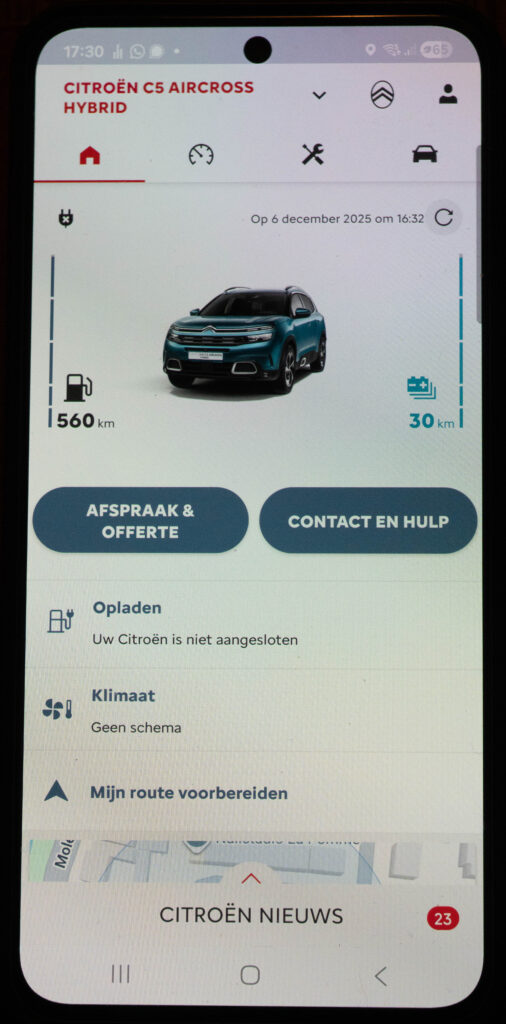
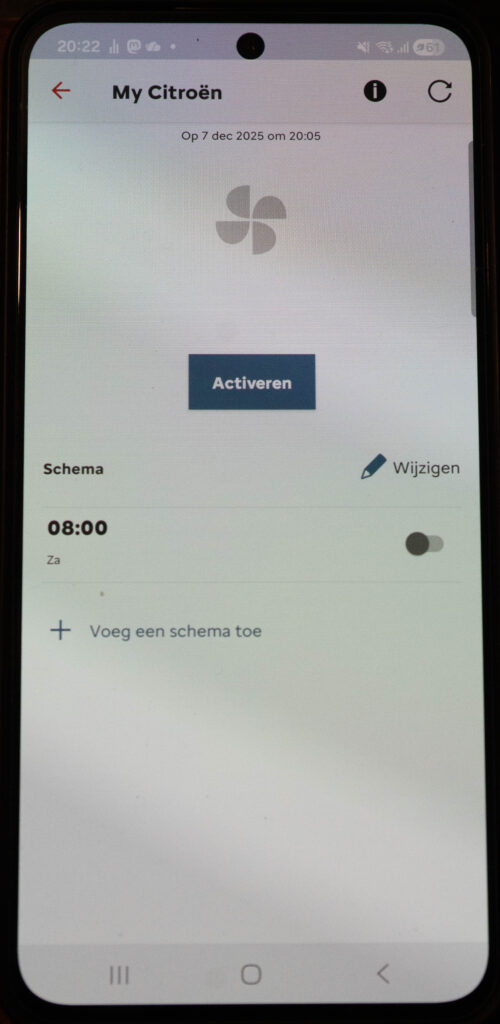
And when I went back into the climate menu, I could also activate the preheating on the fly by hitting the (now blue) button Activate!
So I could deactivate the schedule I had created earlier and just preheat (or precool) on demand!
The steps, in the correct order, and without duplicates
Determine the software version on the multimedia system (under Settings — the sprocket at right hand top/System Parameters/System Info. Sorry, my car only speaks Dutch… but you’ll get the idea).
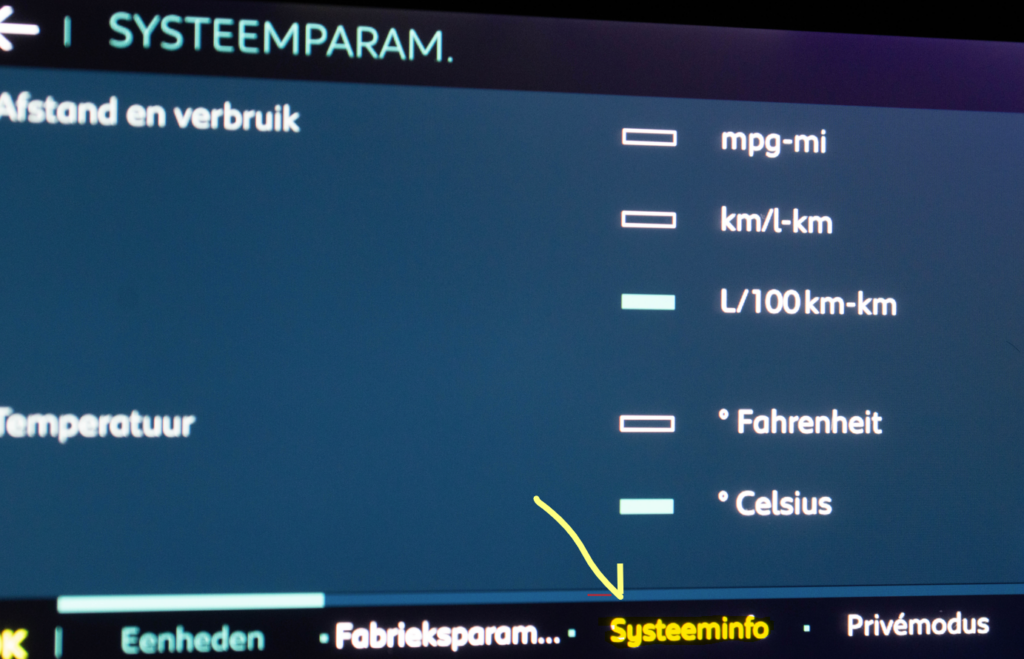
Check https://citroen.navigation.com/home/nl_NL/CitroenEMEA/EUR for the latest version (you’ll need to enter your VIN here; you can find it on your license document or below the left side of the windshield).
If you do have the latest update, fast-forward to the step “Install the MyCitroën app” below.
If the two don’t match, download the update.
Make sure you have a reliable USB drive of at least 32 GB which doesn’t contain anything you care about (make a backup first if necessary), because whatever is on it will be gone when you’re done.
Install and run the Citroën Update software that you downloaded. Follow the prompts in the program. When it tells you it has successfully prepared the USB drive, hit the button that will show you the instructions. Print them, go to the car, and follow all the instrunctions in the documentation you just printed.
Note: since I have a plugin hybrid, and the battery was depleted, I set the drive mode to “Sport” to make sure the engine was running and charging the 12V battery. You do NOT want a critical update to die on you halfway.
Install the MyCitroën app
Now that you’ve made sure your multimedia system has the latest software version (you can run the map update later, while driving if you want to), go to your app store/Google Play and install the MyCitroën app.
It will tell you that you need to make several trips of 20 minutes or longer. I was told repeatedly that one or two should be sufficient.
Configure your phone to act as a WiFi hotspot (be sure to choose a complex password, unless you want the entire world to be able to use Internet through your phone’s data plan), and then, under Connectivity/Options, choose the option that will connect the car to a Wifi-network, and choose the Wifi-network you created on your phone.
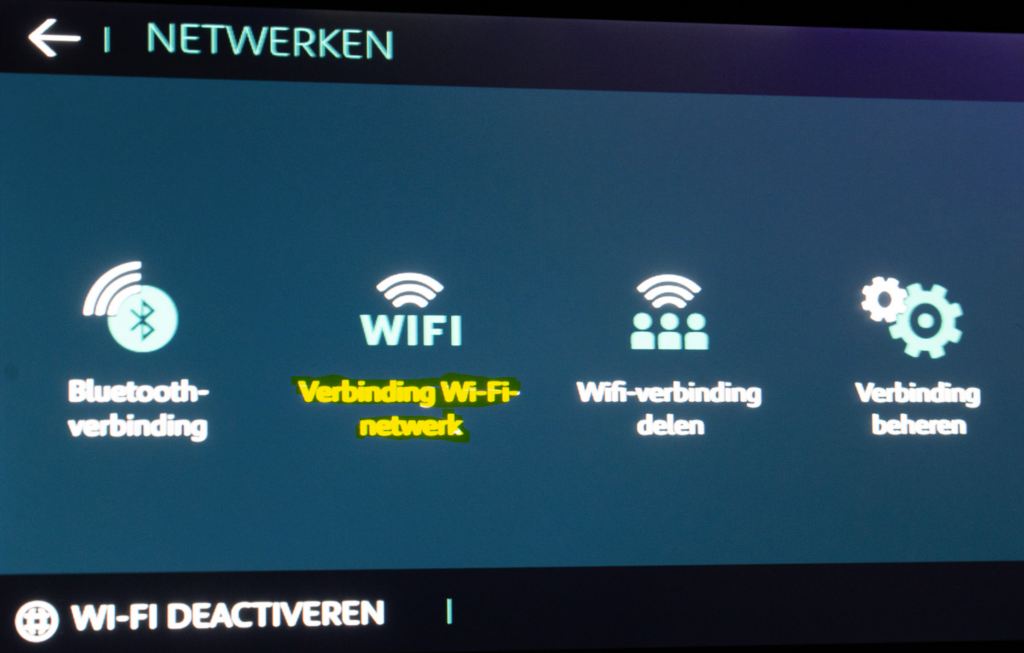
Register/activate the app
You will see that, if you open the MyCitroën app and wait until it has refreshed, at the top (above the picture of the car) there will be a banner that says you will need to activate the software. If you click on it, it will tell you that you have to make a few trips, then, when the banner has disappeared, wait for 5 minutes and then make the last 15 minute trip.
So go ahead, make one or two trips of minimally 20 minutes. Check your MyCitroën-app to see if the banner that prompted you to register has disappeared. You will notice that (usually after the first trip), you will receive an email message and the banner has disappeared.
When you receive the email message, or the banner instructing you to register has disappeared, you’re supposed to switch the car off, and wait for five minutes, and then make one last trip of 15 minutes. That should do the trick. If that happens, go to “Does it all work now?” below.
If all this doesn’t work and that pesky banner is still there after two trips of 20 mins each, contact your Citroën helpdesk. If you got your car secondhand, chances are that the previous owner did not de-register it. If they don’t come up with this themselves, point that out to them — they CAN check it (although they may have to escalate it to check it).
If that has been confirmed to be fixed, back up to the step “Register/activate the app” above.
Does it all work now?
Now your MyCitroën services that are available with your car should work. The free plan entitles you to a couple of things — for my plugin hybrid, it was the ability to postpone the charging process, the ability to configure a route on my phone and then send it to the car, and the option to tell the car to pre-heat (or pre-cool) the car from my phone prior to leaving.
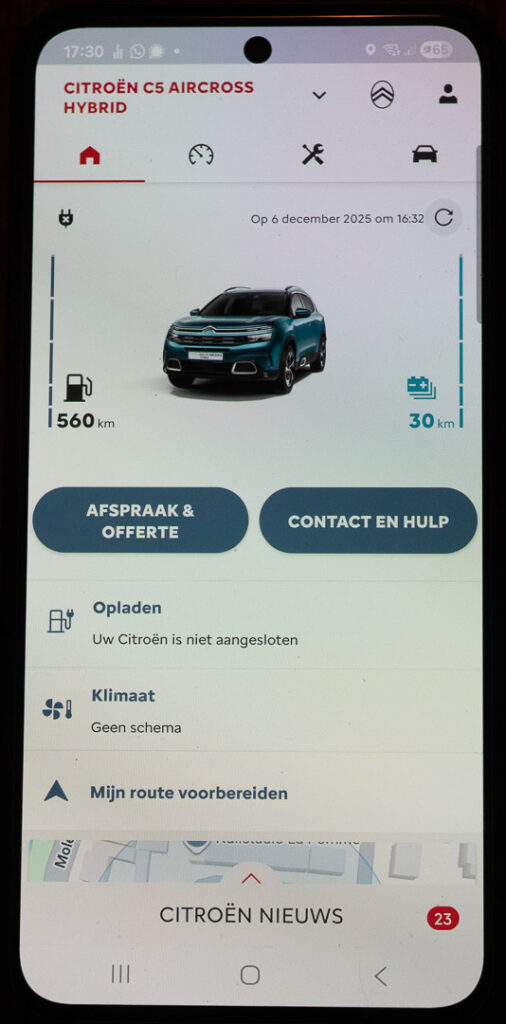
For us, that last option didn’t work — on the main screen, the Climate option showed up as “unavailable”. So here’s what I did:
Open the Climate section, create a schedule and enable it.
Go back to the main screen, and verify that the Climate option is no longer “unavailable”.
Go back to the Climate section, disable the schedule you just create it.
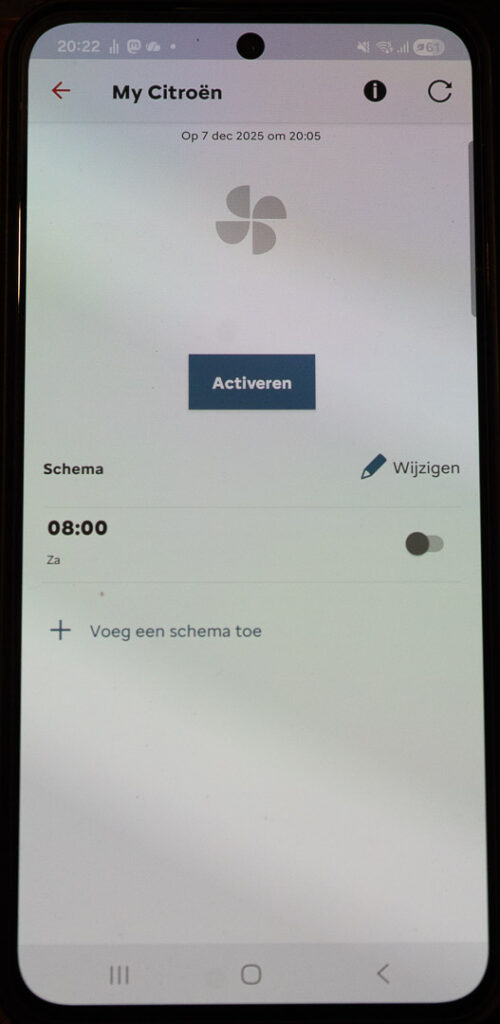
If the Activate button is now blue like in the above picture, you can hit it, your car will actually start to pre-heat or pre-cool (indicated by a fan sound coming from the locked car, and for the C5 Aircross PHEV, the lights in the cup holders being on).
So, you’re all sorted.
Of course, this is all valid for the car I worked with on this. For different models, your mileage might vary. But at least it might give you an idea what to look for!
Figuring this out, and creating the documentation, was greatly helped by the people from the Citroën helpdesk (the number you find when you hit the CONTACT CITROËN button in the app), and the people from the Dutch Citroën-Forum, most notably JW, who was always happy to provide information, and who also provided food for thought.